Account Assistance

New Users

Learn how to access your account and get more information about OneLogin.
Get Started With OneLogin

Sign-In Portal

Enter your OneLogin portal to access apps and services available to you.
Sign in to OneLogin

Password Reset

Update your current password or reset a forgotten password.
Reset your password

Alternative Access

If you don't have regular access to a smartphone, please complete the form below.
Request Alternative OneLogin Access

Once Installed, Do not Delete the OneLogin App

Deleting the app could possibly lock your account. If you have accidentally removed the app or are locked out of your OneLogin account you will need to contact technical support.

Frequently Asked Questions

Strong passwords use password complexity rules (think combinations of letters, numbers, capitalization, special characters, etc).
With OneLogin you can access your applications through a single portal. Access to these applications is delivered through single sign-‐on (SSO) technology. Additional applications will continue to be added.
To change your password for a specific application, hover your mouse over the application tile and you will see the word Edit. Click on Edit and you will be directed to a form where you can specify a new username and/or password as necessary.
  1. Go to the OneLogin portal on a laptop or desktop and login using your Collin credentials.
  2. Select "Begin Setup".
  3. From here (assuming the app is already downloaded) you will select "Activate"
  4. A QR code will then pop up that you can scan using your OneLogin app.
  5. For reference see this OneLogin tutorial video.
Applications you have installed can be removed by hovering over the app and clicking on Edit. If you added the application, you will see Delete Site toward the left side of the page. Applications under the Collin College: Everything tab were assigned to you and are not able to be deleted.
Please refer the advanced features document.

Visit the Collin College OneLogin portal. In addition, a OneLogin link has been added in the dock bar in CougarWeb.

If you enter an incorrect password five consecutive times, you will be locked out for 15 minutes.  After 15 minutes you can retry to login. If you still cannot log into OneLogin, click the 'Forgot Password' link on the OneLogin login screen to reset your password or call the Help Desk. 

No, but it is highly recommended to enhance OneLogin functionality.

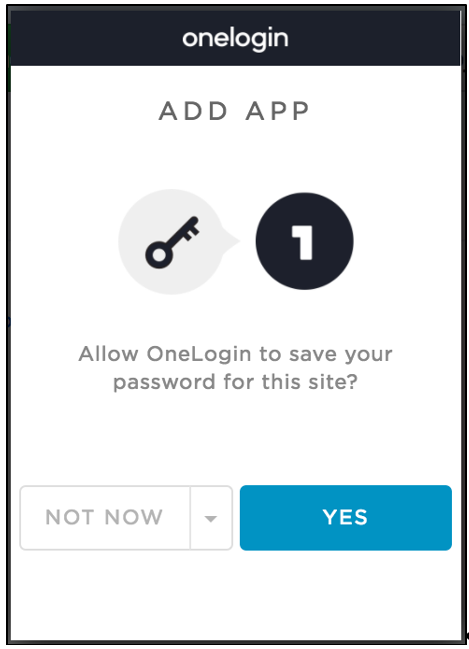
If you see a pop up like this, you are seeing OneLogin Browser extension at work. This is intended behavior. You may choose to save the credentials of other websites you frequently use in OneLogin as well.

OneLogin Add App screen

Yes, the OneLogin Browser Extension is very safe to install.

OneLogin sessions are configured to expire after 8 hours of inactivity.

OneLogin supports the following Web Browsers: Internet Explorer, Edge, Firefox, Safari and Chrome.

Contact the Help Desk at studenthelpdesk@collin.edu. Once they have confirmed your identity, they will be able to provide you with a temporary code to get in and revoke the device you lost. Once you have used the temporary code to log back into the OneLogin Portal you can add a new device as you did before.
OneLogin provides a feature called Smart MFA. Based upon your login behaviors Smart MFA can determine that it is you logging in and not prompt you for MFA.  For instance, once you have logged in from your office or home regularly, you will not be prompted for MFA.  However, if you login every once in a while from an internet cafe or random location, you will be prompted to Accept access in the OneLogin app.

Technical Support

Student Technical Support

Student Technical Support can be reached by calling 972.377.1777 (available 24-7) or sending an email to studenthelpdesk@collin.edu.

If you still cannot log in, requests help through the online form for students.

Employee Technical Support

The Help Desk can be reached by calling 972.548.6555 or sending an email to helpdesk@collin.edu Monday-Friday from 7 a.m.-6 p.m..

If you still cannot log in, requests help through the online form for employees.